Back up and restore Pioreactor system files
Each Pioreactor keeps its configuration, calibration data, and persistent state inside ~/.pioreactor. The Inventory page now lets you export that directory as a system archive (.zip) for safekeeping and import it onto the same unit when you need to restore or clone a setup.
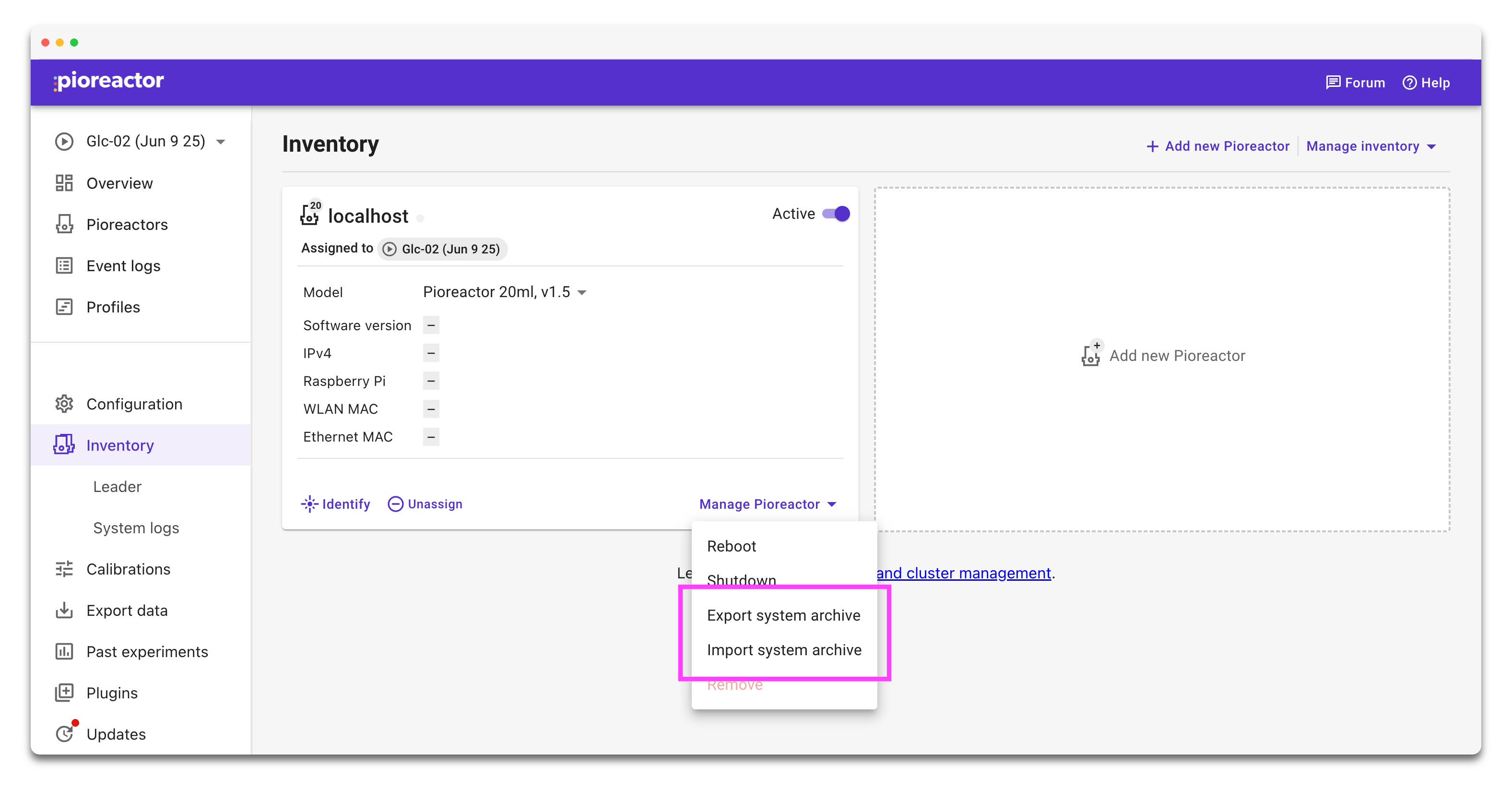
Exporting a system archive
- Open the Inventory page, find the Pioreactor you want to back up, and click Control Pioreactor → Export system archive.
- Review the dialog and click Export when ready. The UI downloads a file named
<pioreactor>_dot_pioreactor.zip. - Store the archive somewhere safe. It contains every file from that unit’s
~/.pioreactorplus apioreactor_export_metadata.jsondescriptor (hostname, version, export time).
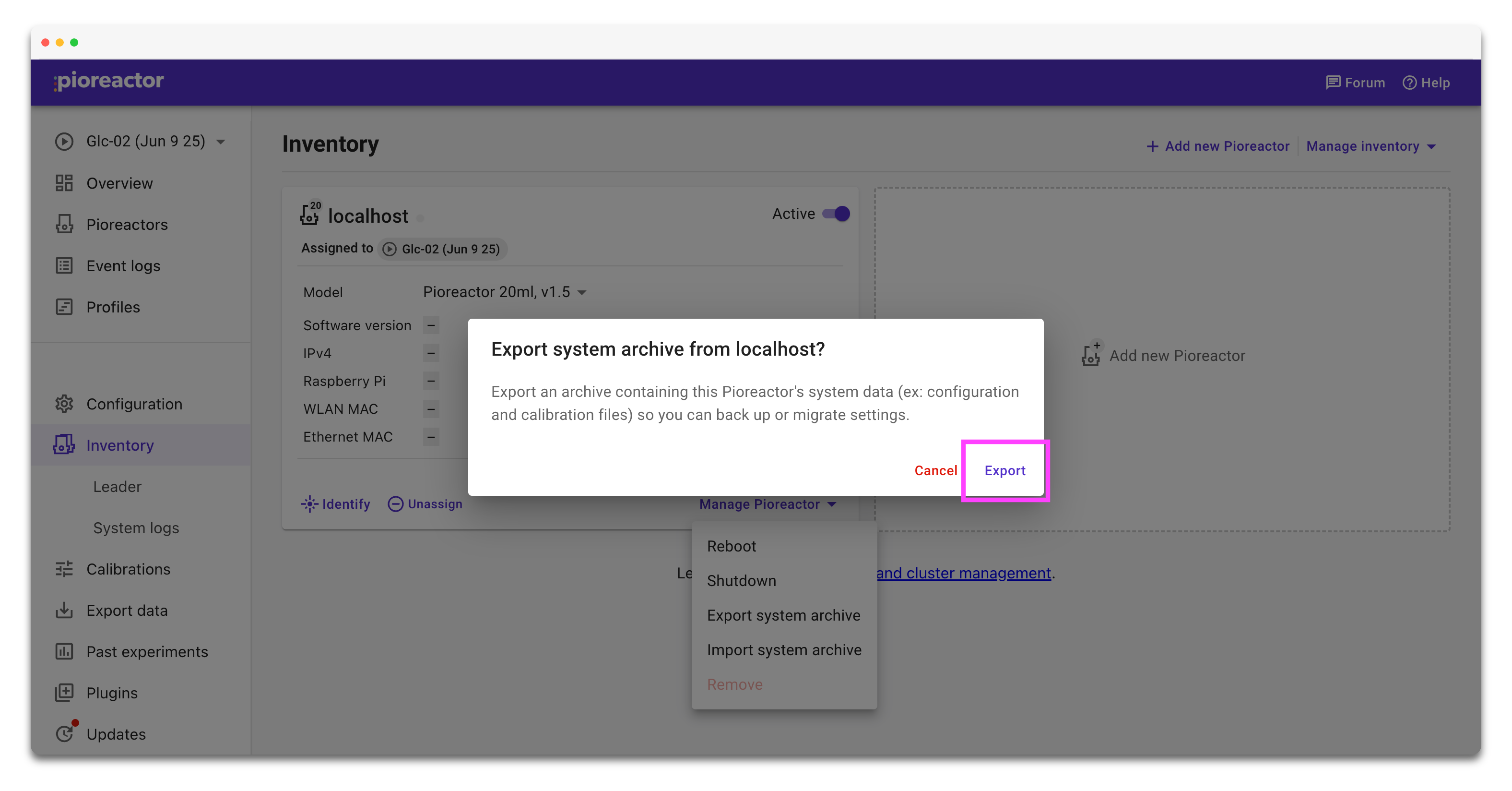
After you confirm, the browser saves a zip named <pioreactor>_dot_pioreactor.zip.
Troubleshooting
- If export is blocked, check whether the unit has the sentinel file
~/.pioreactor/DISALLOW_UI_FILE_SYSTEM; removing it re-enables downloads. - Since the export is over http, you may need to "approve" your browser to download it (check the download tab in your browser).
- For the leader Pioreactor, it's also exporting the sqlite database. This might take a while for very large databases.
Importing a system archive
Use imports when you need to restore a backup, duplicate a Pioreactor after replacing hardware, or bring back calibration data after re-flashing an SD card.
- On the Inventory page, choose Control Pioreactor → Import system archive.
- Read the warning and click Select system archive file, then pick a
.zipgenerated by the export flow. - Wait for confirmation in the snackbar. The UI shows a spinner while uploading and tells you when the Pioreactor begins rebooting.
Importing wipes the existing ~/.pioreactor on that unit before restoring the archive, so anything not inside the uploaded zip is permanently removed.
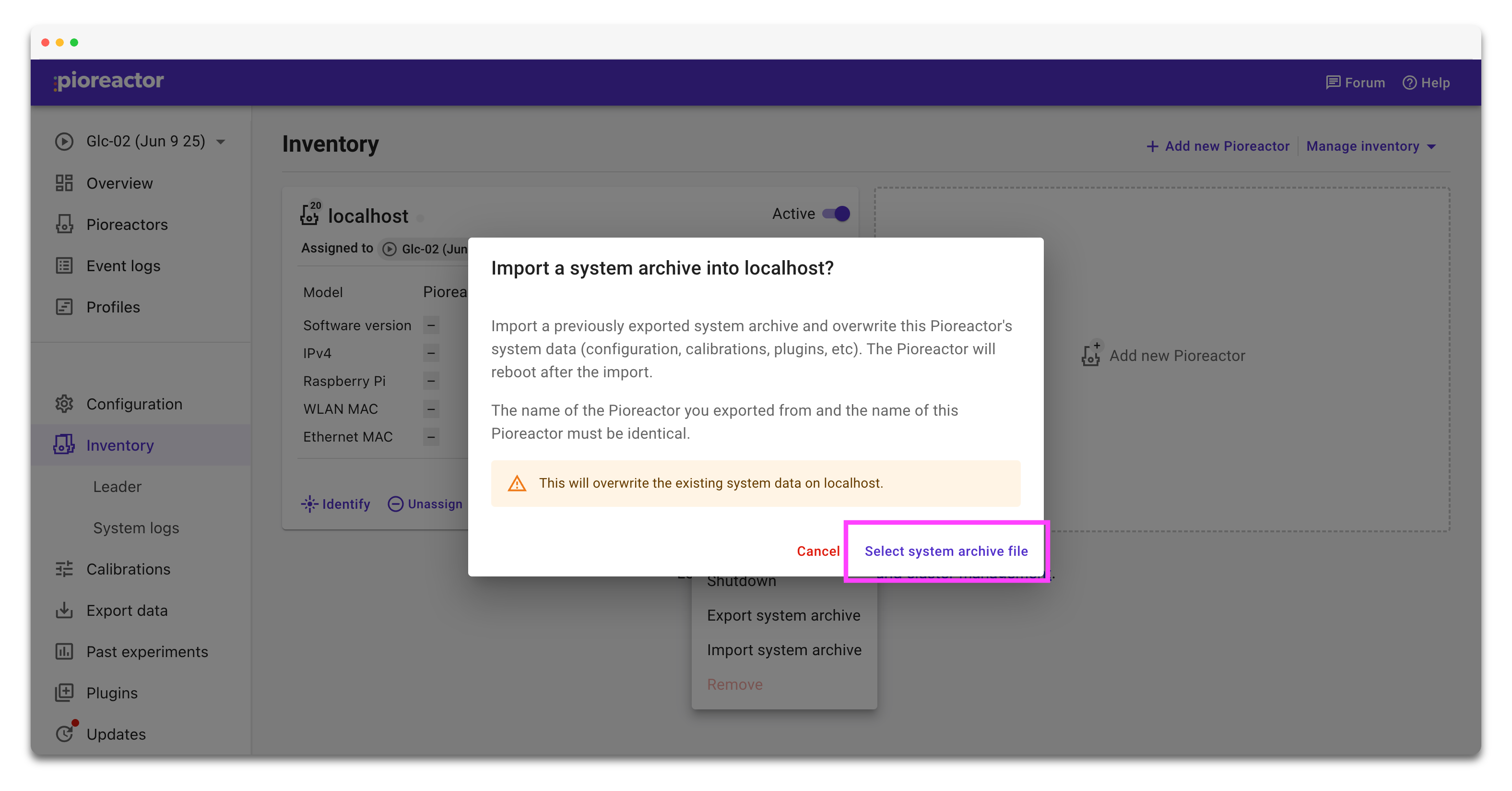
Important behaviour to note:
- Hostnames must match. The worker compares the archive metadata to the target unit name and rejects mismatches during import.
- The ZIP is validated to block absolute paths, symlinks, or other unsafe entries before anything is extracted.
- An automatic backup of the existing
~/.pioreactoris written to/tmp/<hostname>_dot_pioreactor_backup_<timestamp>before any files are replaced. You can manually restore from that folder if you need to undo the import. - After the files are moved into place, the worker schedules a reboot so the new configuration takes effect.
- Imports and exports share the same guard: adding
~/.pioreactor/DISALLOW_UI_FILE_SYSTEMdisables both operations until the file is removed.
Advanced notes
- For scripted workflows you can hit
/api/units/$broadcast/zipped_dot_pioreactorto download archives for every worker in one request. The aggregated ZIP namespaces each unit under a folder that matches its hostname. - Imports are always per-unit. If you are automating restores, loop over your hosts and POST the zip to
/api/units/<pioreactor>/import_zipped_dot_pioreactorone at a time.
With these tools you can keep regular snapshots of your cluster, move calibrations between identical builds, or roll back quickly after testing changes.