Using USB drives
Pioreactor can use an attached USB drive for offline software updates, plugin installs, and large data exports.
Supported drives
Use a USB drive formatted as exfat, vfat / FAT32, or ext4. Pioreactor mounts supported removable drives under /run/pioreactor/usb/.
In the Pioreactor UI, open Inventory and find the USB drive card. If a supported drive is detected, click Mount. After you are finished, click Eject before removing the drive.
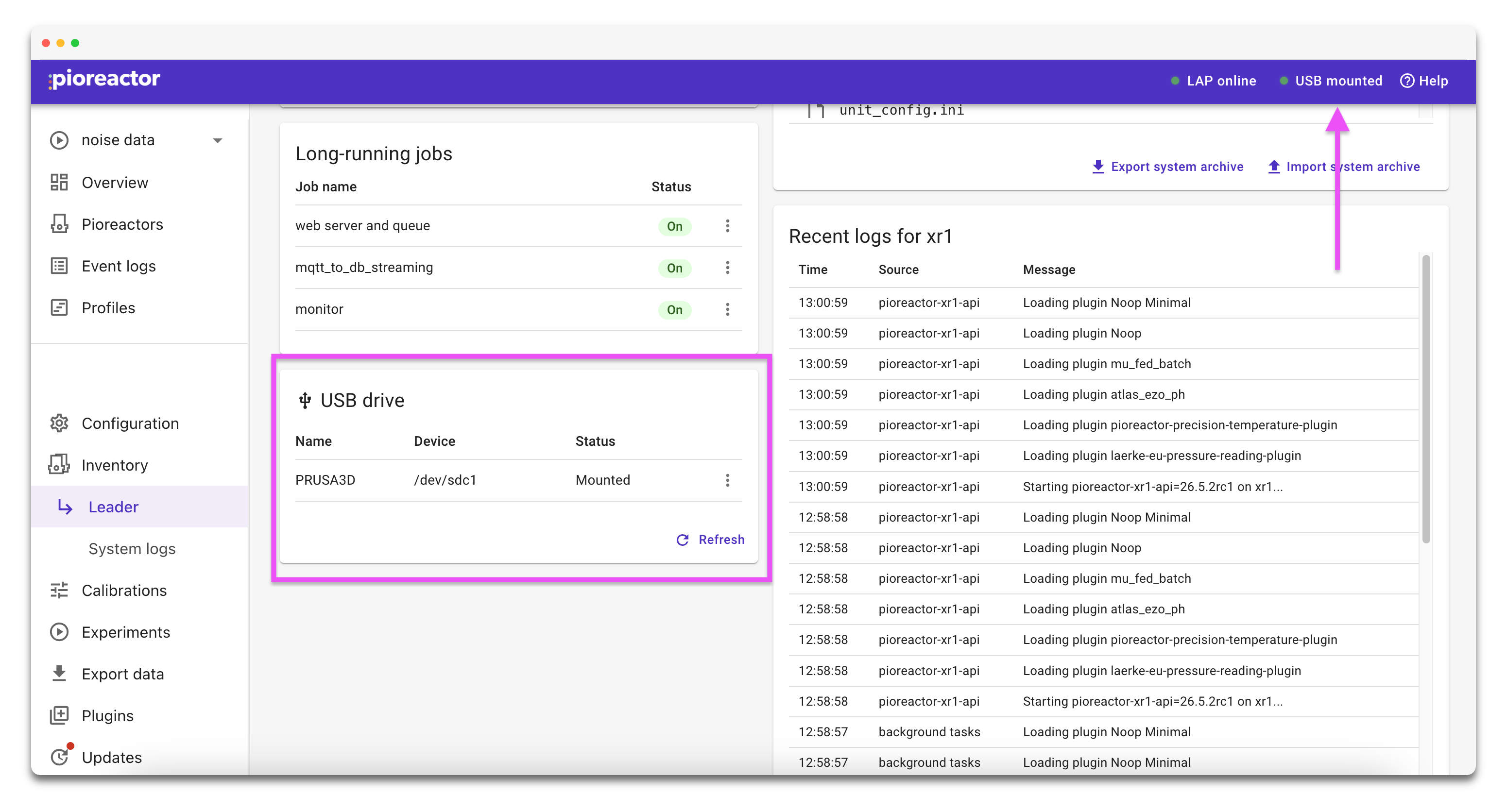
Files Pioreactor looks for
Pioreactor scans the mounted USB drive for known artifacts:
- Software update archives named like
release_26.5.0.zipat the root of the drive. - Plugin wheel files ending in
.whlat the root of the drive or inpioreactor/plugins/.
Exports saved to USB are written to:
pioreactor/exports/
Update software from USB
- Download the Pioreactor release archive on another computer.
- Copy the
release_*.zipfile to the root of the USB drive. - Attach the drive to the leader Pioreactor and mount it from the USB drive card.
- Open Updates, select Update from USB, choose the archive, choose the Pioreactors to update, and click Update.
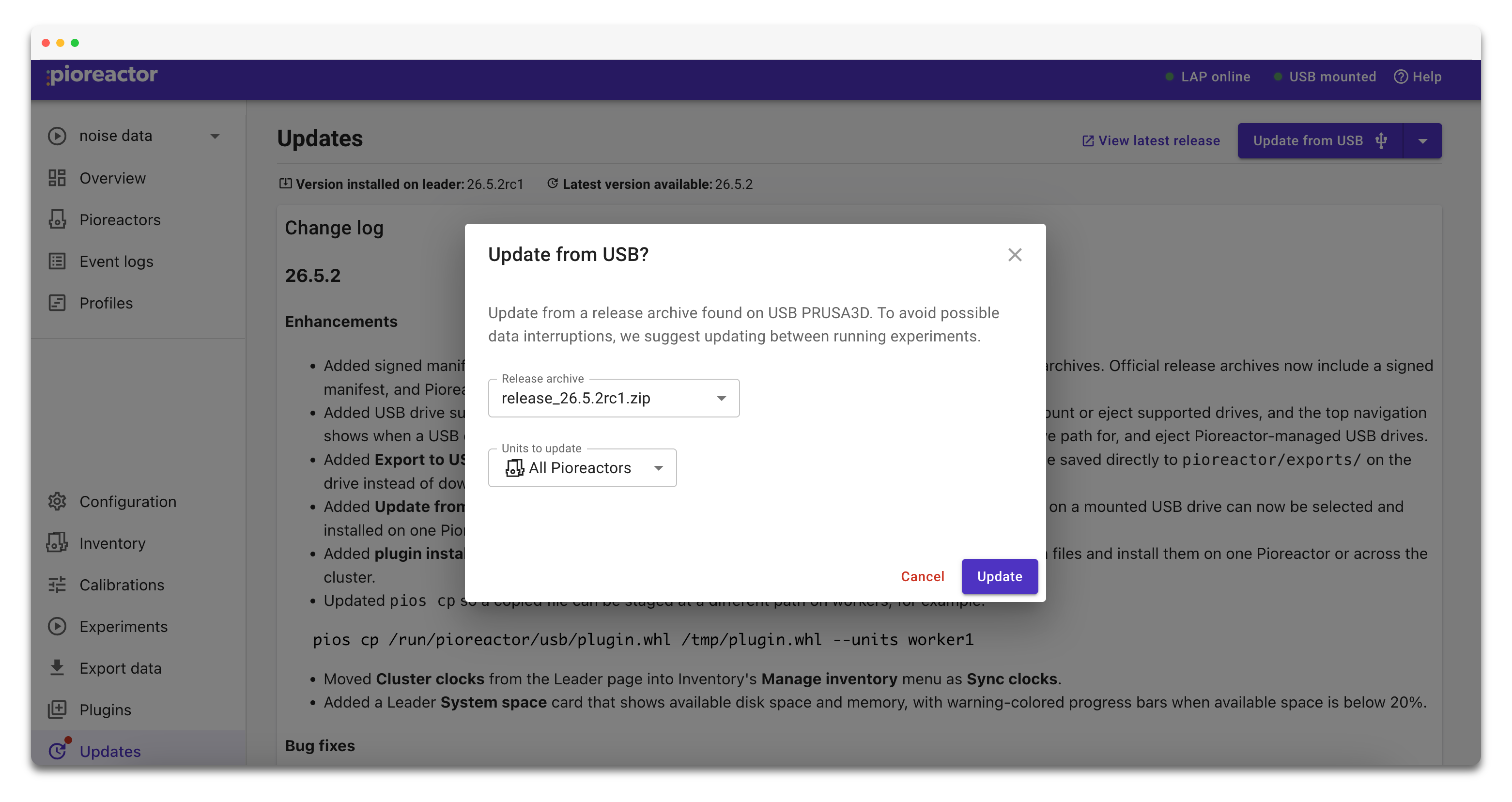
Official release archives include a signed manifest. Pioreactor verifies the archive before running update scripts.
Install plugins from USB
- Copy the plugin
.whlfile to the USB drive root, or topioreactor/plugins/. - Attach and mount the drive on the leader.
- Open Plugins. Plugins found on the mounted USB drive appear above the usual plugin list.
- Choose a target Pioreactor or the cluster target, then click Install.
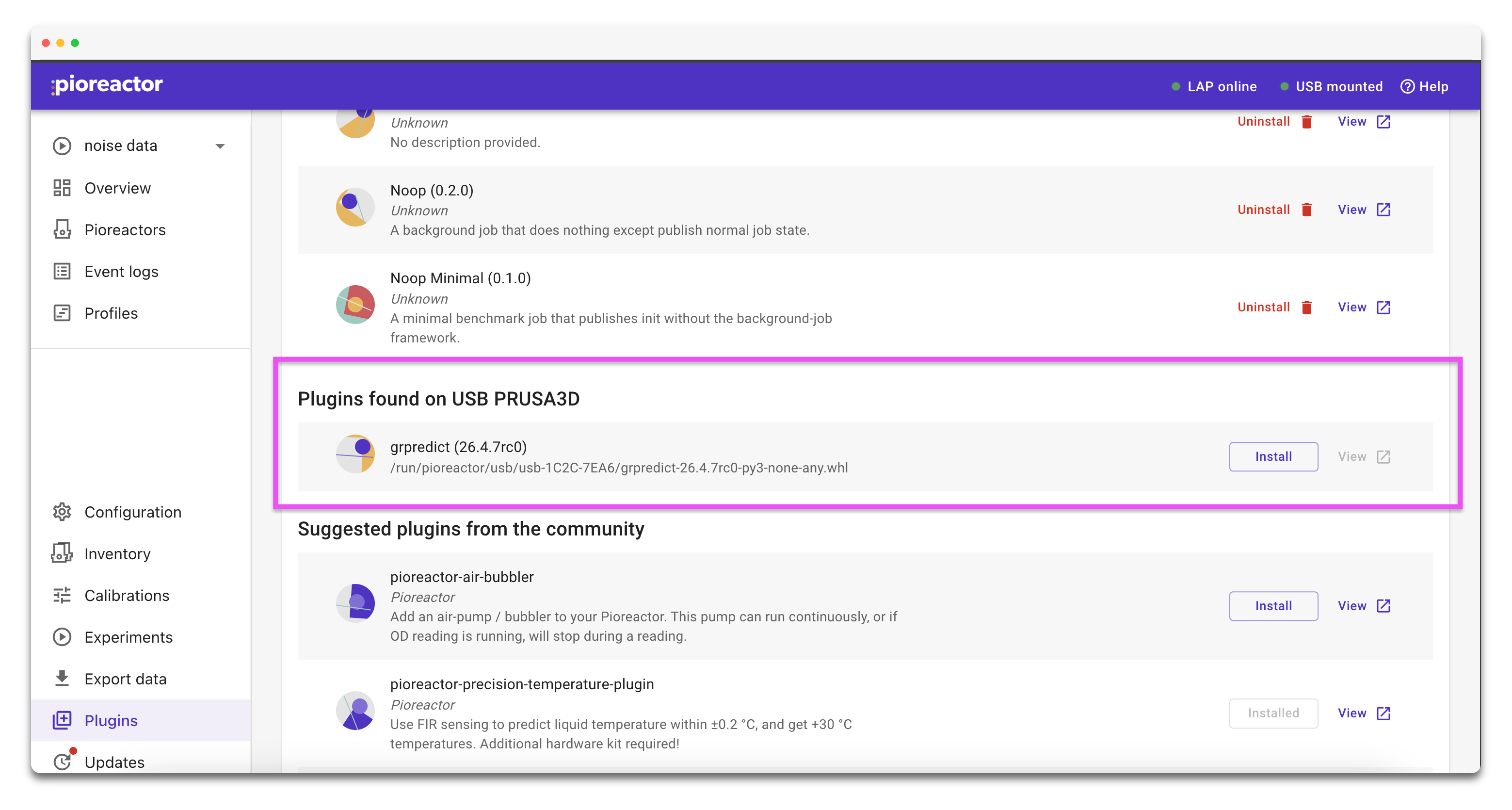
For worker installs, the leader copies the wheel to the worker and installs it from the staged file.
Export data to USB
- Attach and mount a writable USB drive on the leader.
- Open Export data.
- Select the experiment, datasets, and date range.
- Choose Export to USB and start the export.
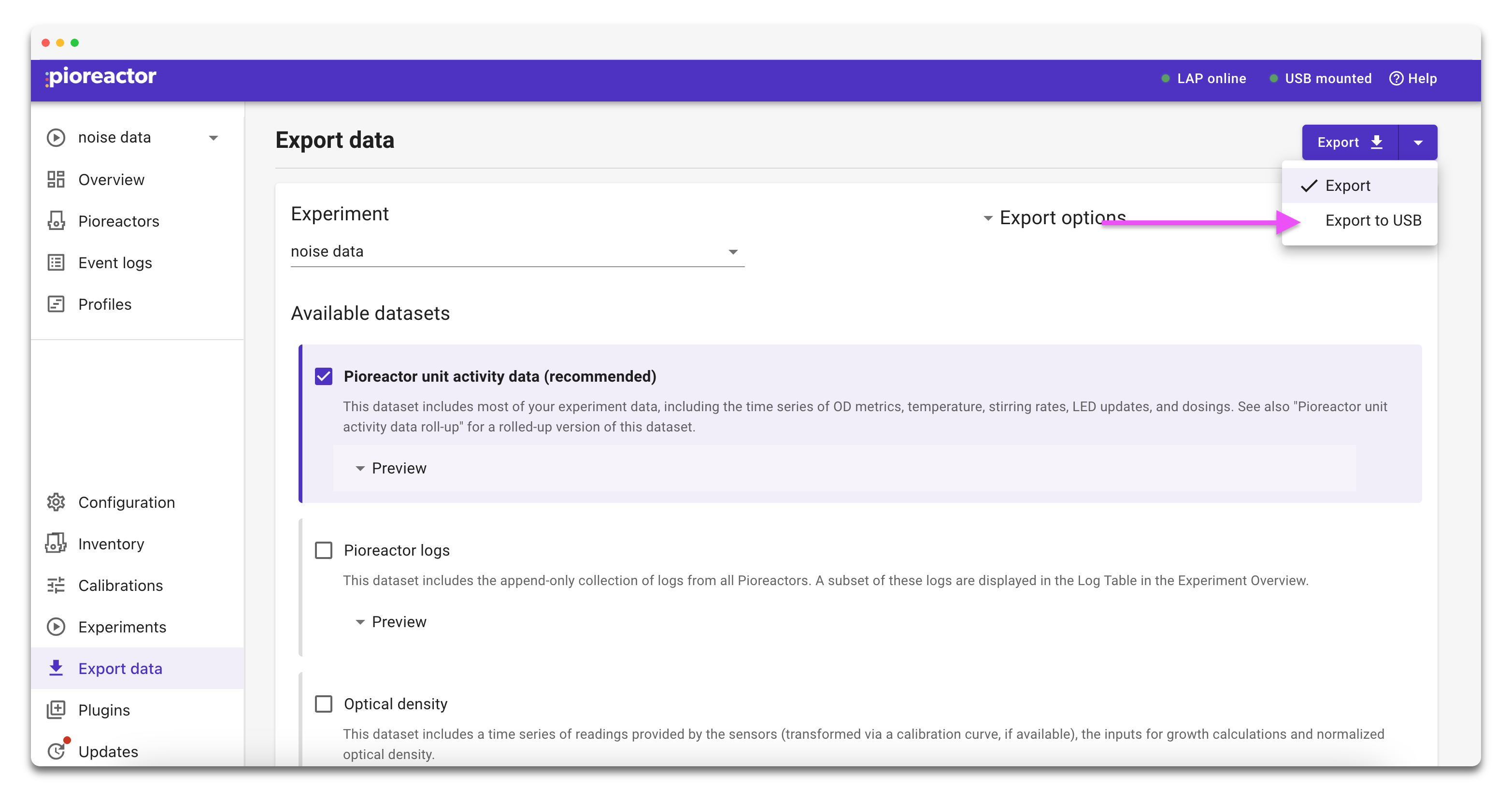
Large exports can take a while. Keep the page open until the export finishes.
Command line
You can also manage USB drives over SSH:
pio usb list
pio usb mount
pio usb scan
pio usb path
pio usb eject
If more than one removable partition is detected, pass the device explicitly:
pio usb mount --device /dev/sda1
pio usb eject --device /dev/sda1